“I’ll be honest, at first, working in Lightning was painful…I didn’t know where anything was. I didn’t understand fully how to manage object Lightning Pages and how to apply them to Apps and Profiles and Record Types. It felt like a LOT of work would be needed to get everything ready for our users.
But how do you eat an elephant? One bite at a time!” – Lightning or Bust
 In the above blog post, I outlined the approach we took to launching Lightning in our org. Our first step was to get comfortable with Lightning ourselves.
I mean, who wants their wine pairing selected by someone who doesn’t drink wine? In order for us to roll out this new UX, we really needed to work in it, learn it, and be advocates for it. Otherwise are we really serving up the best experience for our users?
Looking back, there are some significant areas in setting up Lightning that we needed to learn how to use and really understand, not to mention functionality in Classic we needed to have an answer for in Lightning:
- Apps: Whether to promote Classic Apps to Lightning or create new Lightning Apps
- Classic Sidebar: Best way to replicate this functionality in Lightning
- Lightning App Builder: Object Record Pages (this was a LARGE focus)
- Lightning Page Templates (default vs. from scratch)
- Standard Lightning Components
- Quick Links vs Related List(s)
- Highlights Panel (changing fields that display)
- Buttons and Actions (where the heck did they go and how do I fix them?)
- Activation Options (cause they are clear as mud aren’t they??)
- As well as other features such as Home Page options, List View Considerations, Using the new Lightning Email Templates, and the upgraded Notes functionality
So we got out our plastic pails and shovels and applied the sunscreen liberally and jumped into our sandbox to play and LEARN! I’ll share below some of our thought processes as well as tips, tricks and links we learned along the way!

Apps: Whether to promote Classic Apps to Lightning or create new Lightning Apps
When we first began to test, we realized that the concept of the Lightning Apps was so much more important than how Apps work in Classic. In Lightning, you can use the Apps to drive how Lightning record pages appear. This really became the axis for how we approached our Lightning Rollout. Because of this we decided to focus on the ‘Personas’ our users take on every day – what functions they are using the system for and how we could design for those.
Our Classic Apps had become a bit of a mishmash of apps that no one really used (since they could customize their tabs anyway), so although we knew we could ‘upgrade’ a Classic App to Lightning, we opted to start fresh with new Functional Apps.
Another couple of reasons to consider starting fresh:
- You can’t add a utility bar to an upgraded classic app (as of the writing of this post)
- Your users can’t take advantage of customizing their tabs if the App is an upgraded Classic App (as of the writing of this post)
With brand new apps in the Lightning Experience we are also able to start turning off Classic Apps as we herd our users toward Lightning!
Here are some resources to learn more about Apps in Lightning: Lightning Apps on Trailhead; Salesforce App Considerations
Classic Sidebar: Best way to replicate this functionality in Lightning
This was a biggie for us. We had several links on our sidebar that were heavily used. And not just links to website, but links that opened reports in the context of the logged in user, as well as links for very specific tasks (example: Log A Timecard) that every single user accesses each week.
We actually tackled this one a couple of different ways:
Rich Text Lightning Component on Home Page: Many of the general links we were able to replicate by just creating a Rich Text Component and embedding the hyperlink as needed. Plop it on the Home Page and you are good to go!
Utility Bars in Lightning Apps: Similar to above, you get some great options with the utility bar. Just add a Rich Text Component here as well with the links you need. The great thing about the utility bar is it is app specific, so you can serve up links/info based on the function of the user rather than the security profile which is how the Home Pages are assigned. This gives you more flexibility to get people what they need as they wear different hats in your org.
For User Specific Reports we retooled some of the reports to make use of either the standard ‘My Records’ report functionality or adding some dynamic ‘My Record’ indicators using formula fields on the specified object. (We use this extensively – here is a great blog post that describes the use case.)
Lightning App Builder: Object Record Pages
This was really a big source for my anxiety. The thought of having to touch all of our objects to set up a Lightning Record Page, to know what will be useful to the users (not just what I prefer) and not be caught in some unending hell of Record Layout changes was a little bit daunting. Frankly it made me want to run and burrow into the ground somewhere where no-one will find me.
But my boss said I gotta eat the elephant so I’m taking this one bite at a time!
Lightning Page Templates (default vs. from scratch)
When you first turn on Lightning, your records default to a very slim Lightning Record Layout. It varies by object, but generally is a tabbed wide left panel, then a narrow right panel. The highlights panel isn’t there; if chatter or activities are enabled, then those components will be there along with the record details and related lists. And it’s not super-clear or obvious that you can choose a different template to start from.
What would be great is if there was some sort of emulator for the admin – where you could try out different templates and page configurations on the fly, then edit from there – almost like we got with the various default themes for MyLightning that we can use and test. But, alas, if it were just that easy admins like us would be out of a job!
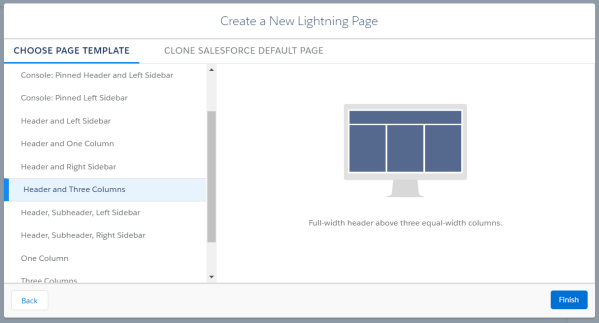
So one of the first things we did was go to Settings>User Interface>Lightning App Builder where you can create a new Lightning Record Page from scratch and see which ones you have created so far. But that was pre-Spring ’18! Now you can get to New Lightning Pages directly from the Lightning App Builder (and see which pages are relevant for that App). For testing purposes, we created a Lightning Record Page for every template (wide-left/narrow-right, wide-right/narrow-left, 3-column, etc.), then started adding Lightning Components. It is always better to show something to your beta user group so we prepped all kinds of options!
Just don’t get stuck thinking that out of the box Lightning Record Page is what you have to work with! Here is a great Trailhead Unit on Lightning Record Pages.
Standard Lightning Components
Next up was getting familiar with all of the Standard Lightning Components available. As I mentioned above, my team really just played with them all. Added them to page layouts, stacked components, used the Tabs on the wide panel, used them on the narrow panel, embedded tabs within tabs, and more! Here is a great blog post from Admin Hero about the out of the box components.
A few I’d like to focus a bit closer on here:
Quick Links vs Related List(s):
Prior to Winter ’18, we had a component for the Related Lists, and a component to show an individual Related List (that s is important). I love that you can display individual lists – this really allowed us to get the info our personas needed front and center without them needing to scroll through a set of lists. HOWEVER – one of the big drawbacks (IMO) about both of these is they only display 4 fields. Our users are used to seeing up to 10 across and we’ve worked hard to cultivate those lists to show the most important info. It was a big stumbling block of moving to Lightning.
But Winter ’18 gave us the Quick Links which was one of the tipping points for us. If you haven’t used them or thrown them on your page layout I encourage you to do so. You get the familiar ‘hover’ experience from Classic (making users feel more comfortable – bonus!), you get all 10 fields, and if you click on the name of the related list in the quick link section, it opens up on a new tab where you can scroll through all the records! WOOT! I can’t imagine life without it! (Dramatic, yes, but I can’t deny my truth!)
Highlights Panel:
You can add up to 7 fields on the Highlights Panel – the first field is the Header on your page, then the other 6 appear below. To add/change these fields, it’s not the section on the page layout labeled Highlights Panel. I repeat – it is NOT the section on the page layout called Highlights Panel. Why they are called the same thing but not used in the same way, I’m not sure. And to be honest it really bothers me. But surely it’s on someone’s list of things to address, right? Instead, you need to create a Compact Layout for the object.
A couple of things about compact layouts: You can’t edit the default compact layout. So you have to create a new one. Then you assign the compact layout by Record Type (not profile – which to me is SO strange – I really would prefer to assign by profile or even by App or page layout). Also note – the compact layout drives the first four fields that highlight in the Mobile app, as well as the expanded lookup dialogs you see in both mobile and Lightning. So keep this in mind. Here is a help doc that explains Compact Layouts.
Buttons and Actions
So once you play around with Lightning Record Pages a bit, you’ll notice that the buttons and actions are hiding and you can’t figure out how to change/add them. (And along with that, your related lists for Activities and Activity History are not in the Related Lists Lightning Component you added – and the new Notes Related list isn’t here either! Weird.)
Buttons and Actions – these appear in the Highlights Panel – by default 3 buttons will show with a drop-down list – but you can display up to 10 at a time. So decide how many you want to display. If you want to change the order of your buttons and actions, you’ll need to go to each page layout and edit the section for Salesforce Mobile and Lightning Experience Actions. Here you can choose the buttons and actions and the order they display on the page.
To send emails and log tasks or create notes, since those Related Lists are no longer there with the applicable buttons, you have to add the appropriate Lightning Components to the page layout. Once you’ve added the Activities Component and the Single Related List for Notes, you might see the options to Log A Call, New Event, New Task, Send Email for activities, but you might not. Those need to be added to the same section as the buttons above. (So they make you think you are adding them as buttons, but these really appear as actions in the Activities Component. Clear as mud, right?) And the order in which you set them is the order in which they are displayed.
Now this needs to happen for all Page Layouts on an object. (Oye, I know!) I strongly encourage you to decide on the order of the buttons, actions and the order of the activities actions and set them up the same way for each object. Nothing more frustrating to a user than to be on an Account record and Log A Call is defaulted first on the Activities component, but when they navigate to a Contact record, the New Event action is the first one displayed. Users will appreciate a seamless experience.
And here is another help topic on Finding Buttons and Actions in the Lightning Experience.
Activation Options

If you are like me, when you get to the point of activating your Lightning Record Page, this is where your eyes glaze over and you almost want to throw up your hands. The first time I saw the Activation options I pretty much wrote off the Lightning Experience. I was used to being able to assign a page layout to a record type and profile and that was enough! Now there are SO many options. And to have to make these decisions on an object by object basis really seemed like climbing up a steep hill.
But give yourself some time to play with it, tinker with the options and make a plan for your org. There is a big difference between the Activation options for the Lightning Record Page and Assigning security to your page layouts. In fact, that page layout assignment is still very vital – this drives what you see on the details component and in related lists by profile (and record types). The Lightning Page Activation, on the other hand, determines what Components are shown around those details and related lists.
We looked at this as a way to really enhance the ‘Persona’ experience we are cultivating with Lightning Apps and focused on activating most of our Lightning Record pages as App defaults. Let me give a detailed example to help explain: When viewing an Account record, depending on what hat you are wearing that day (what ‘Persona’ you are playing), you might want to see different information and you might be taking very different actions. If you are selling to that customer, you might want to see the Opportunities for that account front and center, you might want a chart or two about open opps and closed won opps and be able to quickly gauge where you are with that prospect or customer. If you are working on a project for that Account, you don’t really care about the sales, but instead want to quickly see customer contacts, active projects, and open cases. If you are in Finance and focused on billing for the Account, you might want to see an account balance, open invoices and have quick access to send emails for collection purposes.
So we created Apps for those functional ‘Personas’, then Lightning record Pages that met the needs described above and activated those pages for the applicable Apps. When I need to Manage Projects, I open the Project Management App and navigate to the Account; when I need to focus on selling, I can switch to the Sales App and voila, my Account view changes and I can now get to the info I need. I still see the same fields and details, but the components are rearranged in an order that better suits the functions I am performing based on the ‘Persona’ I am playing at the time.
You can get more detailed info about Page Activation here, but I also encourage you to just play with it, get comfortable with it and define how you will approach it in your org.
Other Lightning Features
 There are SO MANY other features of Lightning to explore, you could easily fall down the proverbial rabbit hole. Since we had given ourselves a timeline to launch Lightning, we focused on a few features we know would give us some bang and deliver value to our users.
Along with those described above, we put time and effort into user Home Pages (since you can display whole dashboards on them and even have dashboards display or not display based on User fields – think of the possibilities!), and making sure we understood many of the new features such as List View Changes (Kanban view and displaying Charts), new Lightning Email Templates (these are tha-bomb-dot-com), and the upgraded Notes functionality.
Lightning Dashboards and Reports are vital to the Lightning Experience and provide a HUGE incentive for getting users into Lightning so clone a few dashboards, customize them in Lightning with new sizes, new chart options and color options (thanks Salesforce Wizard). These will help provide the ‘Wow’ factor.
I know the above seems a lot to digest – what did you expect when you tried to eat an elephant? Remember – one bite at a time.
For our Lightning Rollout we determined we needed
- Apps with Utility Bars for our Personas
- To setup Lightning Record Pages for the MAIN objects for those Apps
- Home Pages with functional Lightning Dashboard embedded on it
- A rollout and training plan that highlights how these changes delivered value to our users. How they could use Lightning to drive business decisions, to serve up the necessary information based on their persona, and how to create efficiencies so they can focus on their job, not trying to figure out the system.
We sat in a room, made a list of the changes to make and got to work. We didn’t tackle all of the objects – just the objects that get viewage – we have plenty of objects that are supportive so people rarely click into them – those can get by with the default for now. Some of it was tedious (I’m looking at you Salesforce Mobile and Lightning Experience Actions on every page layout) but once we rolled through our list, we were experts at setting up Lightning Record Pages and really had a great grasp of how the Lightning UX is designed to work for our users.
Of course we aren’t done and will never be, but all of the extra goodness that we haven’t tapped into yet is just more opportunity to improve our user’s experience.
There’s nowhere to go but up from here.












 Nana Knows Some Stuff